

GA4 form abandonment tracking helps businesses understand why visitors start filling out contact, signup, or lead generation forms but leave before completing them. By tracking form starts, interactions, errors, and successful submissions in Google Analytics 4, marketers can identify where potential leads drop off. These insights help teams fix confusing fields, improve the mobile experience, and increase completed form submissions.
What Form Abandonment Means in GA4?
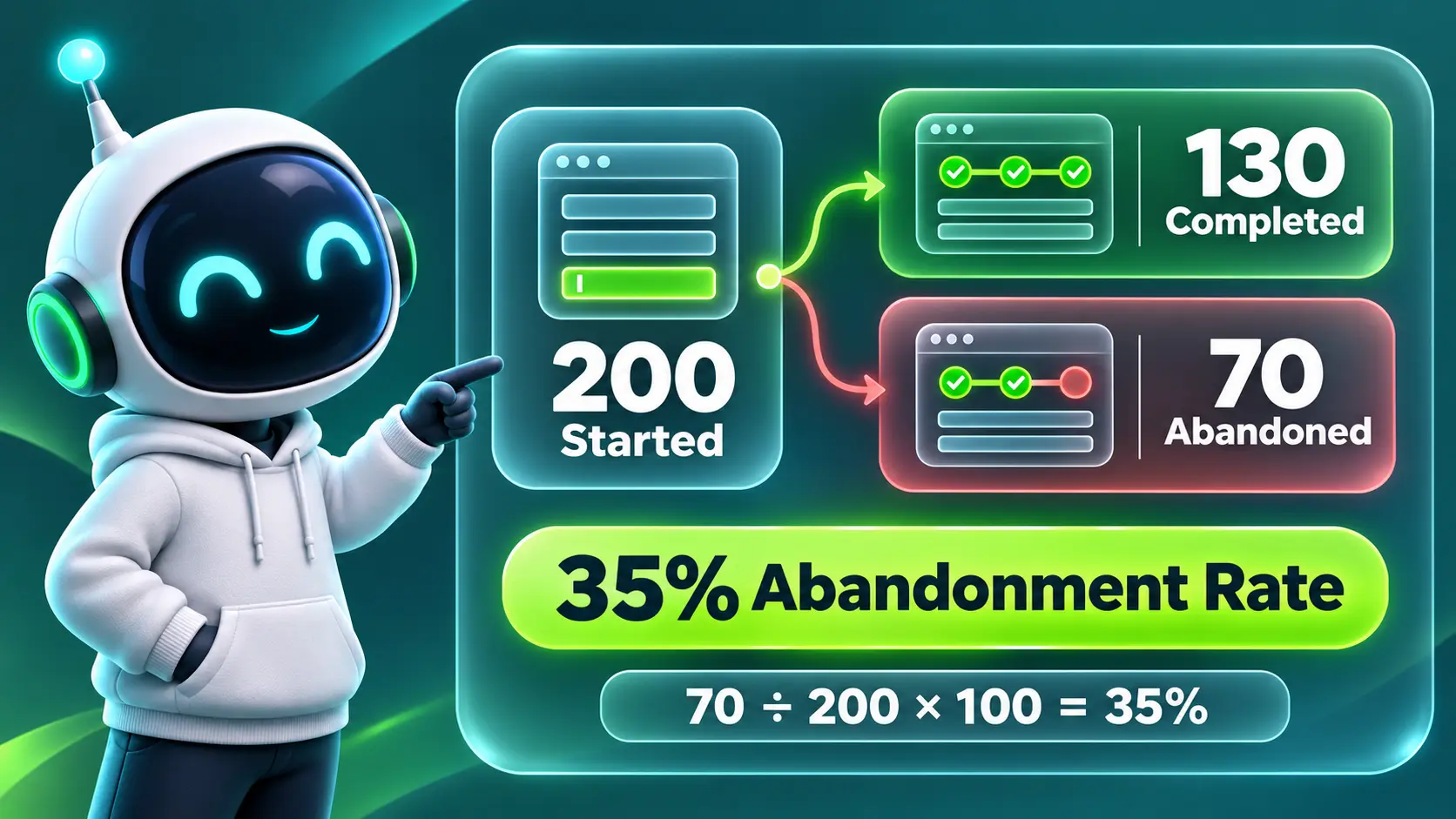
Form abandonment happens when someone starts filling out a form but does not complete a successful submission within the defined measurement period. In GA4, businesses can estimate abandonment by comparing form starts with completed submissions. However, the measurement must use a consistent definition of users, sessions, or individual form attempts because these can produce different abandonment rates.
This approach is stronger than relying on pageviews alone because many forms sit on a single page. Interaction events let you detect progress even when the URL never changes.
A simple form abandonment rate is calculated by dividing the number of started form attempts that did not reach a confirmed successful submission by the total number of started form attempts, then multiplying by 100.
Form Abandonment Rate = (Abandoned Form Attempts ÷ Total Started Form Attempts) × 100
For example, if visitors start 200 form attempts and successfully complete 130 of those attempts, the remaining 70 attempts are abandoned. The form abandonment rate is 35%.
This calculation is most accurate when each start and successful completion can be matched to the same form attempt. GA4 event counts alone may not provide that match when users restart forms, submit multiple times, or return in another session. GA4 user-based funnels should therefore be described as funnel drop-off estimates unless a more precise attempt-level measurement has been implemented.
Why GA4 Needs Event Based Form Tracking?
GA4 is built around events and parameters rather than goal based tracking. That makes it flexible for multi step forms, embedded forms, and conditional fields. Google’s official Enhanced Measurement events documentation explains which form interactions GA4 can automatically collect and what information those events contain.
GA4 can automatically collect form_start and form_submit events through Enhanced Measurement when form interactions are enabled and the website’s forms are supported. However, automatic tracking may not capture every embedded form, multi-step interaction, validation error, or confirmed lead submission. Businesses should first test the built-in events, then add custom tracking where more detail or reliable success confirmation is needed.
Events to Track for Form Abandonment
A useful form tracking model captures both progress signals and failure signals. Keep names simple and stable so they remain readable in reports and easy to maintain over time.
- form_start: A GA4 Enhanced Measurement event that records the first detected interaction with a form during a session. Its automatic collection depends on form compatibility and configuration.
- form_field_interaction: A custom event that records interaction with selected form fields, such as when someone leaves a field. Use a consistent field_name parameter without collecting the user’s entered information.
- form_step_view: A custom event that records when a visitor reaches a specific step in a multi-step form. Parameters such as step_number and step_name help identify where users stop progressing.
- form_error: A custom event that records validation failures, such as an incorrectly formatted phone number or an unanswered required field. Use non-sensitive field identifiers and error categories.
- form_submit: A GA4 Enhanced Measurement event that can record form submissions. Because an automatic submission signal does not necessarily prove successful backend processing, its behavior should be tested before treating it as a completed lead.
- generate_lead: A Google-recommended event for a completed lead-generation action. Implement it when a real lead or information request has been successfully received, using a reliable confirmation signal.
With these events, you can build funnels that show where users drop and identify possible reasons for abandonment. Google’s recommended GA4 events also provide a standardized way to measure important business actions, including successful lead-generation submissions.
How to Implement GA4 Form Tracking Cleanly?
Implementation quality determines whether your abandonment numbers can be trusted. The goal is to avoid duplicate events, missing submits, and noisy triggers that inflate engagement.
- Define A Measurement Plan: Document event names, required parameters, and what triggers each event so teams implement consistently.
- Choose A Deployment Method: Check whether GA4 Enhanced Measurement already captures the required form interactions. For additional events, use Google Tag Manager or direct website code, depending on the form technology, available triggers, and implementation requirements. Avoid collecting the same event twice through different tracking methods.
- Fire Events on Reliable Triggers: Prefer validated UI states such as step changes, error messages rendered, and confirmed success messages.
- Standardize Parameters: Use the same parameter keys across all forms such as form_id, form_name, field_name, step_number, and error_type.
- Prevent Duplicate Submits: Trigger successful lead events only after a verified completion signal. Prevent duplicate reporting caused by repeated clicks, page refreshes, overlapping tags, or multiple success callbacks. Where possible, validate each completed lead against the website’s backend or CRM records.
- Validate in DebugView: Use Google Tag Manager Preview, Tag Assistant, and GA4 DebugView to test form starts, field interactions, validation errors, and successful submissions. Confirm that the events fire in the expected order, contain the correct parameters, and do not generate duplicate completed-lead signals. Refer to the official GA4 DebugView documentation for setup and troubleshooting instructions.
Once the basic events are working correctly, expand your analysis using available GA4 dimensions such as device category, traffic source, and landing page. If additional custom parameters are necessary, collect only the information required for analysis. Never send form answers, email addresses, phone numbers, or other personally identifiable information through GA4 event parameters.
Recommended Event Parameters for Better Diagnosis

Parameters turn generic events into diagnostic insights. Keep values normalized, short, and consistent so reporting stays clean and comparisons are valid. When you need to analyze custom parameters in GA4 reports, follow Google’s instructions to create event-scoped custom dimensions.
| Event | Key Parameters | What It Helps You Learn |
|---|---|---|
| form_start | form_id, form_name, page_path | Which forms attract intent and which pages trigger the most starts |
| form_step_view | form_id, step_number, step_name | Where users drop between steps and whether step sequencing is confusing |
| form_field_interaction | form_id, field_name, field_type | Which fields create friction and how far users progress before exiting |
| form_error | form_id, field_name, error_type | Whether abandonment is driven by validation issues or unclear requirements |
| generate_lead | form_id, form_name | Which lead-generation forms produce confirmed successful submissions |
Start with a small set of consistent event parameters and expand only when there is a clear reporting need. To analyze custom parameters such as step_number, field_name, or error_type in standard GA4 reports and Explorations, register the required event-scoped custom dimensions in Admin under Custom definitions. Use existing GA4 dimensions whenever they already provide the information you need.
Building A Form Funnel in GA4 Explorations
GA4 Funnel Exploration helps businesses visualize how visitors move through forms and where users stop progressing. Funnels can be analyzed using dimensions such as device category and traffic source. Google’s official GA4 Funnel Exploration guide explains how to configure funnel steps, apply filters, and interpret user progression.
- Open Funnel Exploration: In GA4, open Explore and create a Funnel Exploration. Use a closed funnel when you want to include only users who enter at the first defined step. Use an open funnel when users should be allowed to enter at later steps. In both cases, GA4 evaluates funnel progression in the defined step sequence.
- Add Funnel Steps: Start with form_start, add the relevant form_step_view events for each required step, and finish with a verified successful completion event such as generate_lead. For a single-page form without separate steps, a simpler funnel using form_start and confirmed lead completion may be sufficient. Avoid adding optional steps that successful users can legitimately skip.
- Apply Filters: Filter by form_id so you are analyzing one form at a time, then duplicate the exploration per form. Make sure the form_id parameter is collected consistently and available as a reporting dimension.
- Add Breakdowns: Break down by device category, default channel group, or landing page to see where drop off concentrates.
- Review Time to Convert: Enable elapsed time in Funnel Exploration to examine the average time users take to move between completed steps. Treat unusually long times as possible signs of friction, not proof that users are confused. Review validation errors, page performance, and form behavior before deciding what caused the delay.
After you identify a high drop step, you can drill into the next layer using field and error events.
Finding Drop Off Causes With Error and Field Data

Not all abandonment is the same. Some users leave because the offer is not compelling, while others exit because the form is difficult to complete. When collecting field-level analytics, follow Google’s best practices for avoiding personally identifiable information so form tracking does not expose sensitive visitor details.
Use form_error to quantify validation failures and pair it with field_name to see which fields cause repeated issues. Then compare abandonment by device to spot mobile specific friction such as input masks, keyboards, or slow loading widgets.
- High error rate on a single field: Review copy, formatting hints, and input constraints such as phone or postal code formats.
- Large drop between steps: Evaluate whether the next step feels unexpected, asks for sensitive data, or has a slow loading dependency.
- Mobile drop off higher than desktop: Check field spacing, autofill compatibility, and whether the submit button is visible without scrolling.
These patterns help you choose fixes that reduce friction without changing the business logic of the form.
Common Mistakes That Break Abandonment Tracking

Small implementation errors can make abandonment look better or worse than reality. Fixing them early prevents teams from optimizing based on bad data. For businesses reviewing tracking across analytics, advertising platforms, and CRM systems, a marketing attribution audit can help identify duplicate events, inconsistent conversion definitions, and reporting discrepancies.
- Counting button clicks as submits: Track confirmed lead completion separately from submit-button clicks or unverified submission attempts.
- Missing embedded form interactions: Ensure listeners work for iframes or third party widgets, or use supported callbacks when available.
- Over firing field events: Avoid sending a separate GA4 event for every keystroke. Excessive tracking creates unnecessary event volume, complicates reporting, and may increase data-processing and cardinality concerns. Capture meaningful interactions such as field completion, validation errors, or selected step transitions instead.
- Inconsistent naming across forms: Use a single taxonomy so comparisons are meaningful.
- No way to separate test traffic: Filter internal users so QA does not distort real abandonment rates.
Once these issues are resolved, your funnels and segments will provide a more dependable view of user behavior rather than instrumentation artifacts.
Turning Abandonment Insights Into Conversion Improvements
GA4 can tell you where drop off happens, but improvement requires a repeatable workflow. Prioritize changes based on volume, impact, and effort rather than gut feel. If paid advertising brings visitors to your forms, reliable Google Ads conversion tracking for lead generation also helps ensure advertising campaigns measure completed leads rather than unsuccessful submission attempts.
- Prioritize the Highest Impact Drop: Identify form steps with substantial abandonment, then consider traffic volume, lead quality, business value, and the effort required to improve them. A step with fewer abandoned users may deserve attention first if it affects higher-value leads or can be fixed quickly.
- Reduce Cognitive Load: Remove optional fields, group related fields, and use clearer labels that match user expectations.
- Increase Trust Signals: Add brief privacy reassurance near sensitive fields and keep it close to the point of concern.
- Improve Error Handling: Make messages specific, inline, and immediate so users can recover without guessing.
- Measure After Changes: Compare funnel completion and error rates before and after releases using the same segments.
A disciplined loop of measurement, testing, and improvement keeps form optimization grounded in evidence. However, increasing submissions should not come at the expense of lead quality. Businesses running paid campaigns can also benefit from qualifying B2B leads in Google Ads so marketing teams focus on enquiries that have a stronger chance of becoming customers.
When to Bring in Analytics Implementation Support
Form tracking becomes complex when you have multiple form builders, conditional logic, single page applications, or third party lead routing. In those cases, accurate GA4 form abandonment tracking often requires coordinated tagging, QA, and governance.
If you need help creating a clean measurement plan, implementing GA4 events through Google Tag Manager, or building reliable funnel reports, ImiliCorp’s marketing analytics services can support your measurement and optimization needs. This is especially useful when marketing and sales teams need a shared understanding of form performance, lead quality, and the customer journey.
Conclusion
GA4 form abandonment tracking works best when you define clear events, attach consistent parameters, and build funnels that mirror real user progress. Once the data is trustworthy, it becomes easier to spot which step, field, or device experience is costing you leads.
Track starts, progress, errors, and confirmed submissions, then use Explorations to locate the biggest drop-offs. Pair that with focused UX and validation fixes to improve form completion without guessing.
Frequently Asked Questions
How Do I Track Form Abandonment If the Form is on One Page?
Use interaction events rather than pageviews. Track form_start when a user begins interacting with the form, record relevant field interactions or validation errors, and use a confirmed successful-lead event such as generate_lead to measure completion. Comparing these events can reveal drop-off patterns even when the URL never changes. For an exact attempt-level abandonment rate, starts and completions must be matched to the same form attempts.
Should I Mark A Form Submission As A Key Event in GA4?
Yes. If a completed form represents a valuable business action, mark a reliable successful-lead event as a key event in GA4. For lead-generation forms, Google’s recommended generate_lead event is a suitable option when it fires only after confirmed success. Avoid treating every submit-button click or unverified form submission as a completed lead. If you have multiple forms, use consistent form identifiers or separate meaningful lead events where necessary.
How Can I See Which Traffic Sources Cause the Most Form Drop Off?
Build a GA4 Funnel Exploration for a specific form using its form_id, then add a breakdown such as default channel group or session source/medium. Compare how users progress through the form across different traffic sources. Higher drop-off rates may indicate weaker visitor intent, confusing landing-page messaging, or technical problems. Keep in mind that users may begin researching on one device and convert on another. Understanding cross-device attribution can help businesses interpret these journeys more carefully.